Let’s talk today about the very useful utility called tmux. After reading this post, you will know what tmux is, why and how you use it, and a few tricks to make the experience better.
Let’s start with the question, what is tmux? Just like the name implies, tmux stands for teminal multiplexer, it has for all practical purposes, replaced the older but similar utility called screens. Once you start tmux, you are welcomed by a similar screen as before, the only difference is the task bar located at the bottom. Let’s see it in action.
To launch tmux, you simply issue the command tmux from the $ prompt, you are welcomed by a screen similar to the following:
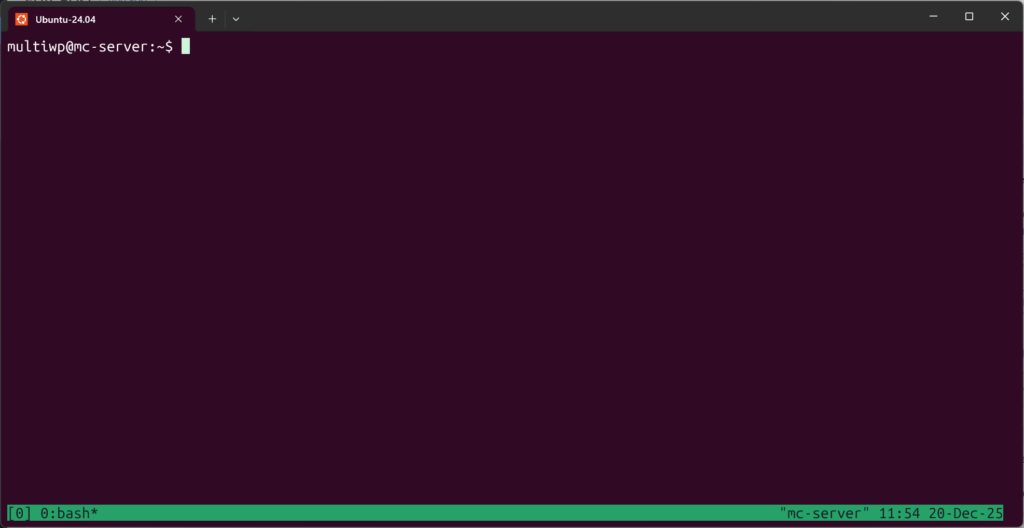
At this point, the session, unless intentional terminated, or the system is rebooted, it will outlive your login session. At this point let’s discuss attaching and detaching from a tmux session. Detaching simply means that the session will continue to run, but in the background, for example, you could start a long process and if you detach, or you are disconnected from the system, you can re-login and attach to the existing sessions. Worth mentioning here is that you can have multiple sessions running simultaneously. Each session is independent from another.
The default detach key sequence is CTRL-B followed by D for detach. At this point you can issue the following command:
tmux ls
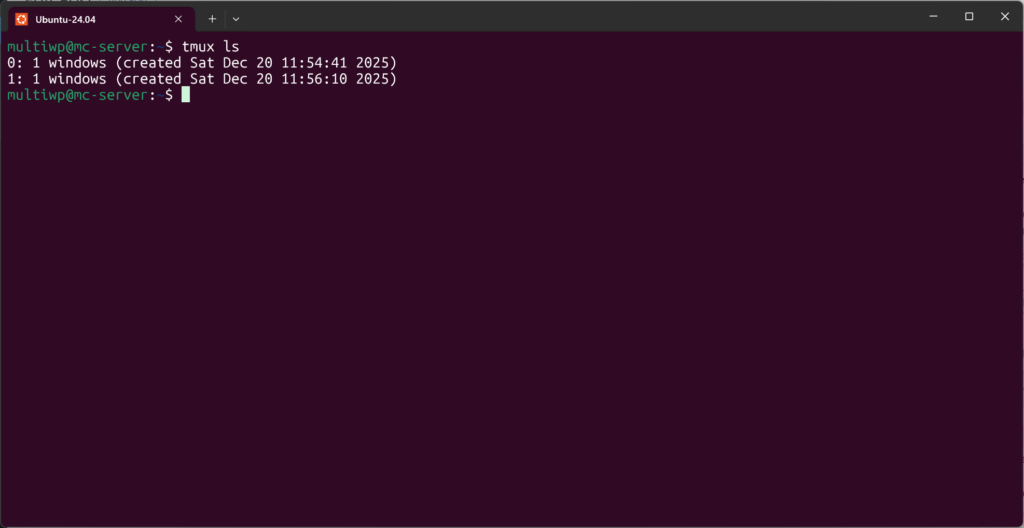
The screenshot above depicts two running simultaneous sessions, “0” and “1”. Sessions can be named, the incremental number is the default id assignment; the -t option allows you to name the session at will.
To attach to a running session, you will issue a command similar to the following:
tmux attach -t 0
The command line argument -t specifies the session to attach to, if only one session is running, the -t is not required, tmux will attach to the only running session.
Now the light bulb should start going and you can imagine many possibilities with how tmux can be useful, seasoned systems admins use it, developers use it, etc.
I believe this is a good stop point for the basics. I will write another post for the advanced uses. For example you could setup key binding overrides and plugins, and have something like this when you start tmux:

Thank you for staying with me until the end. I hope you now better understand tmux.
Happy reading and type away…